THE RESULT YOU'RE WORKING TOWARD
Done means it works.
The saved draft reopens with your business name, and no existing live website was modified.
Practice project: Harbor Home Care01 / GET READY
Before you start.
- Platform / editor
- Wix Editor, desktop and mobile views
- Access & plan
- Wix demo account. Preview work can start without a custom domain; domains, bookings and other features depend on the selected plan.
- Starting point
- Start in a separate demo project using fictional business information.
Keep a note of the exact account, project and version you use. Work with demo data and record the expected result before making changes. Never place passwords, verification codes or private customer records in your evidence.
02 / LEARN THE TOOL
Open the official walkthrough.
Use the publisher's instructions and available screenshots to locate the current controls. Then return here for the SETLY exercise and its result checks. These links open on the publisher's website.
Source credit belongs to the named publisher. These are external references, not SETLY recordings or a claim of affiliation. Screen names and plan availability can change.
03 / PUT IT INTO PRACTICE
Your task, step by step.
Use one labelled demo record or project so you can find your work again. Finish each action before continuing; if the screen differs, consult the matching official source rather than guessing.
- 01
Step 1
Choose a business template whose existing sections include a headline, services and contact details. Open it in Wix Editor; record the template name.
- 02
Step 2
Rename the site Harbor Practice. Replace the site name in the header, then save before changing layout.
- 03
Step 3
Find the page menu and identify Home. Remove demo claims from that page, including awards, customer logos and testimonials that do not belong to this fictional business.
- 04
Step 4
Open Preview, return to the editor, and locate the saved draft again from the site dashboard.
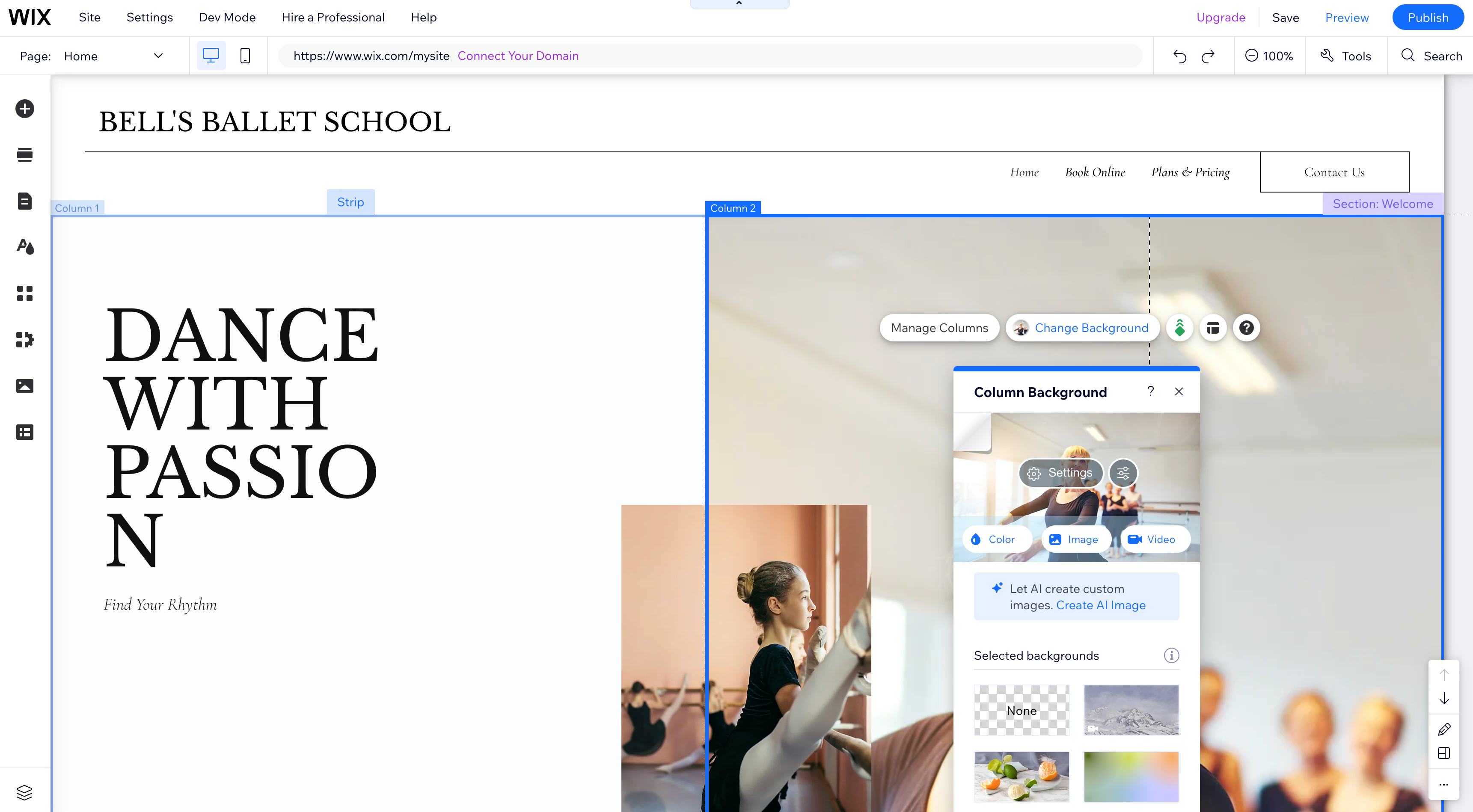
Orient yourself in the Editor. This is the publisher's example, so its page content differs from Harbor.
Source: Wix Help Center. Interface excerpt; rights remain with the publisher.
04 / GET UNSTUCK
If something goes wrong.
Start with the likely cause
If you opened Wix Studio or Harmony, use that editor's own course rather than mixing its controls with this Editor path.
My screen is different from the guide
Check the product, editor, account role and selected project first. Open the credited official instructions for your version. Record the difference and pause any action whose effect you cannot verify.
The screen looks correct, but the result is missing
Inspect the saved record, published page or execution log that should prove the action. A preview, success message or draft is not always evidence that data was stored or a message was delivered. Retest with one unique demo value.
05 / PROVE THE RESULT
Check it before you call it done.
The saved draft reopens with your business name, and no existing live website was modified.
Keep useful evidence
Record the test date, project/version, expected result, observed result and a non-sensitive screenshot or record reference. Mark anything you did not test as untested. Your checkmarks do not certify an untested result.
Download the editable verification checklist ↓Guide status: original written practice exercise with credited external references. SETLY screen recording and independent learner reproduction are not yet complete.